



























.avif)

.avif)
.avif)


























Get a guide to creating pitch decks presentation



.png)

PowerPoint is not just for boardrooms. It’s the all-purpose tool of design that can be used for everything.
Controlling your slide dimensions is an often-overlooked detail, which can actually make a big difference.
Knowing how to change slide size in PowerPoint makes you the person whose presentation always prints perfectly, exports without distortions, and shows on a projector in HD without the messy black borders or broken pixels. How do you do this? It all starts with the Setup menu.
PowerPoint slide dimensions and the size of your canvas dictate the quality of your presentation design.
If you ignore this setting, three things can go wrong:
Setting the correct PowerPoint presentation dimensions from the start will save you all of these headaches.
Before customizing, let’s understand the two native PowerPoint slide sizes.
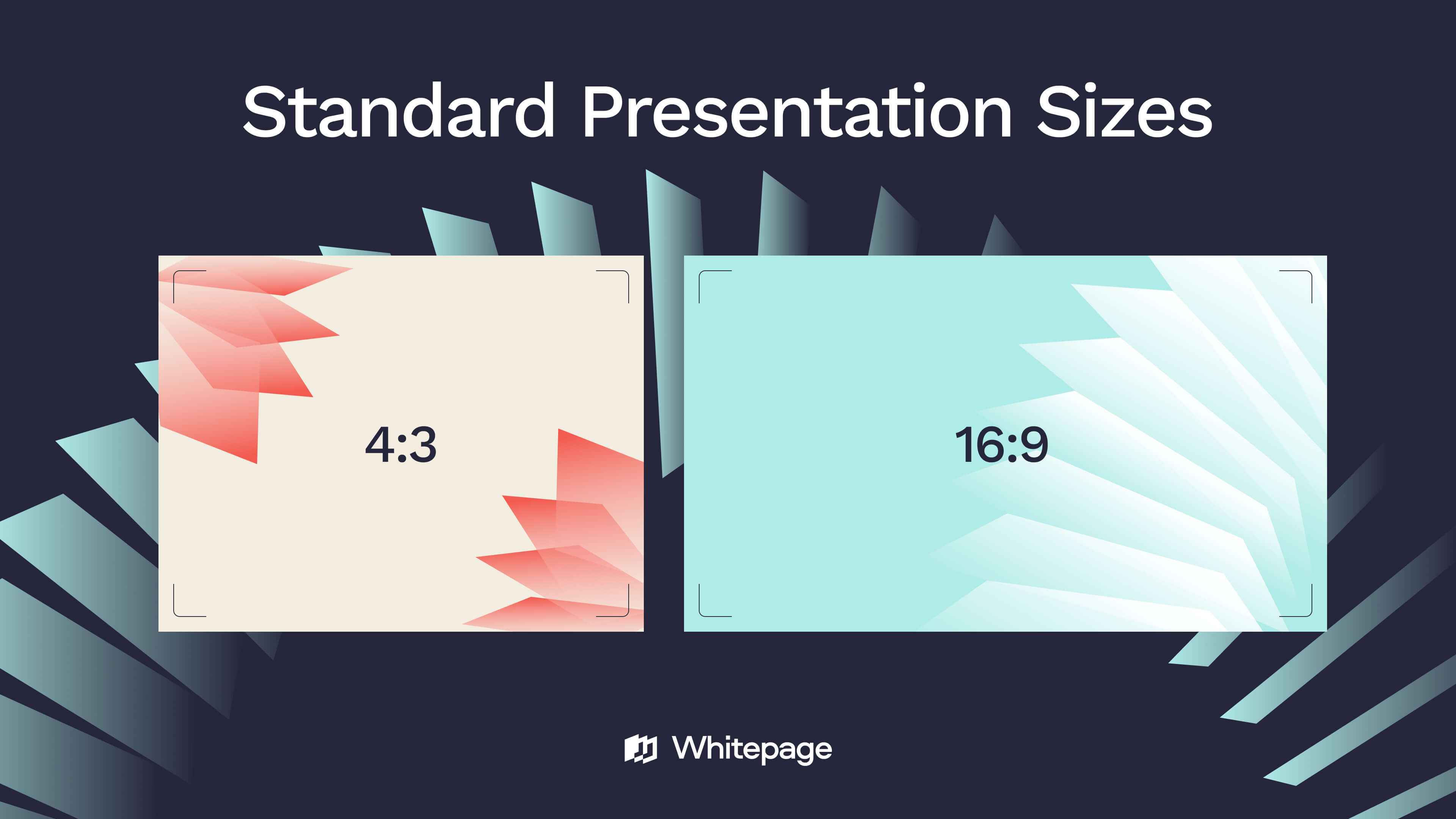
This is the modern standard. It mimics the shape of HD televisions, laptops, and almost all conference room projectors. Since PowerPoint 2013, this has been the default setting.
Use for: Boardroom presentations, YouTube videos, Zoom/Teams meetings.
This is the "boxy" format of the past, but it’s still relevant for specific use cases.
Use for: Content for iPads (which have a 4:3 aspect ratio), printing slides on US Letter paper.
Here is the workflow in a nutshell:
Now let’s look closer at each step.
Here is the safe, professional way to customize your canvas.
Open the Design tab on the top ribbon. Look for the Slide Size button.
Click Custom Slide Size at the bottom of the dropdown menu. This opens the dialogue box with controls for the measurements and the orientation.
In the "Slides sized for" dropdown, you’ll find presets for paper (A4, Letter, Ledger).
Pro tip: Ignore the dropdown. For digital formats, you can type directly into the Width and Height boxes.
Once you click OK, PowerPoint will throw a pop-up asking you to choose between Maximize and Ensure Fit.
This is where most users break their presentation. The names are misleading. Here is what they actually do:
❌ Maximize – this option crops and stretches your content to fill the canvas.
This will distort your photos or crop your text off the edges. Only use this if your slides contain nothing but an abstract background.
✅ Ensure Fit – this option scales your content until it fits inside the new slide boundaries.
Nothing gets cut off, no images get distorted. You might get white space on the sides, but your data and design remain intact.
Pro tip: if "Ensure Fit" leaves you with white space, don't fix every slide manually. Go to View > Slide Master. Adjust the layouts here to fix the entire presentation at once.
Here’s how to use the exact correct PowerPoint slide size dimensions for anything you’re building.
For screens, projectors, and virtual meetings.
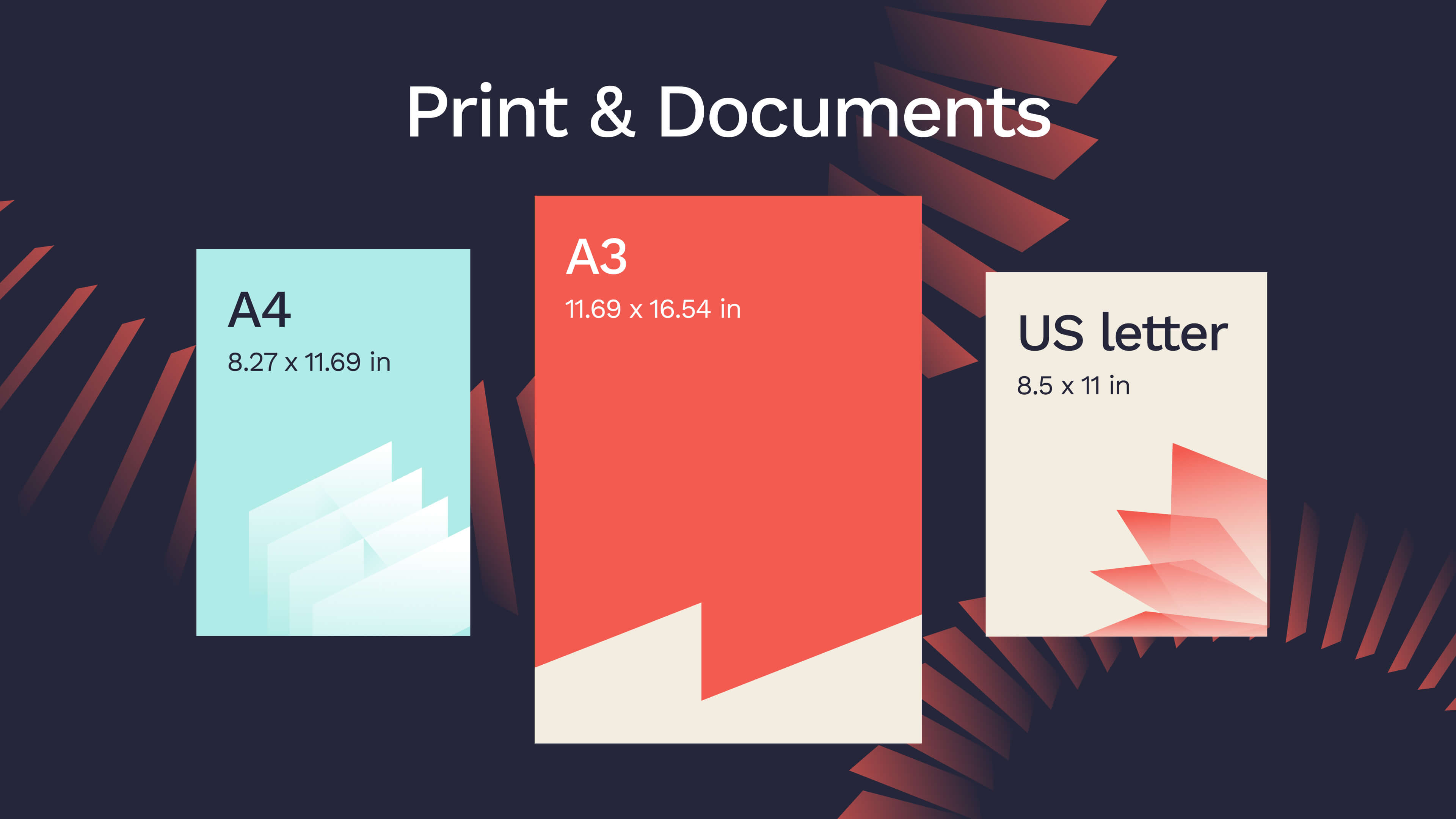
❌ Warning: PowerPoint’s built-in "A4 Paper" preset is very misleading. It defaults to 10.83 x 7.5 in (slightly smaller than a real A4 sheet) to account for office printer margins. If you send this file to a professional printer, you’ll get unwanted white borders.
For edge-to-edge printing, use these True Custom dimensions:
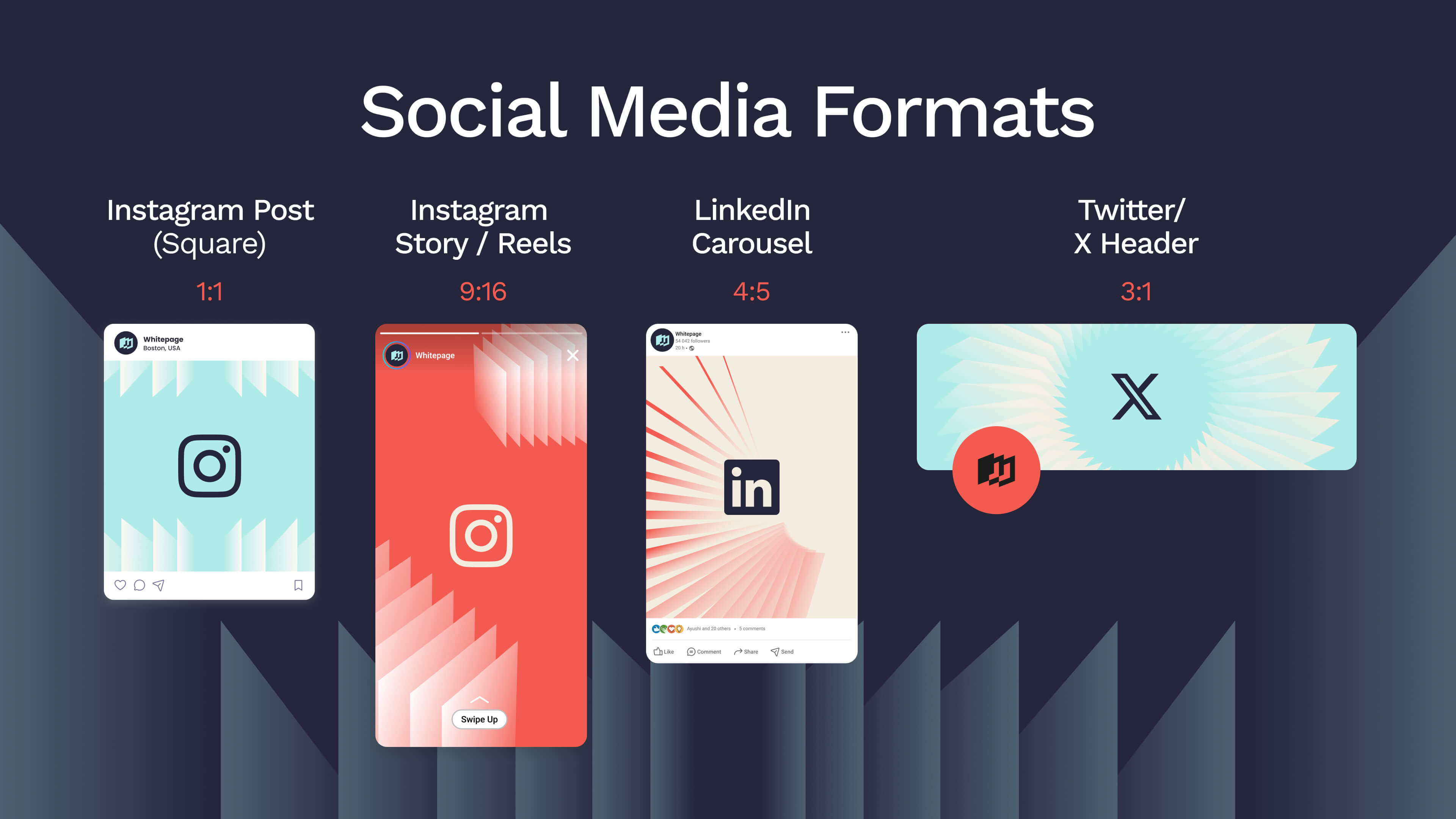
PowerPoint is an excellent tool for social graphics. When you define the PowerPoint slide dimensions clearly to fit your needs, you ensure high quality.
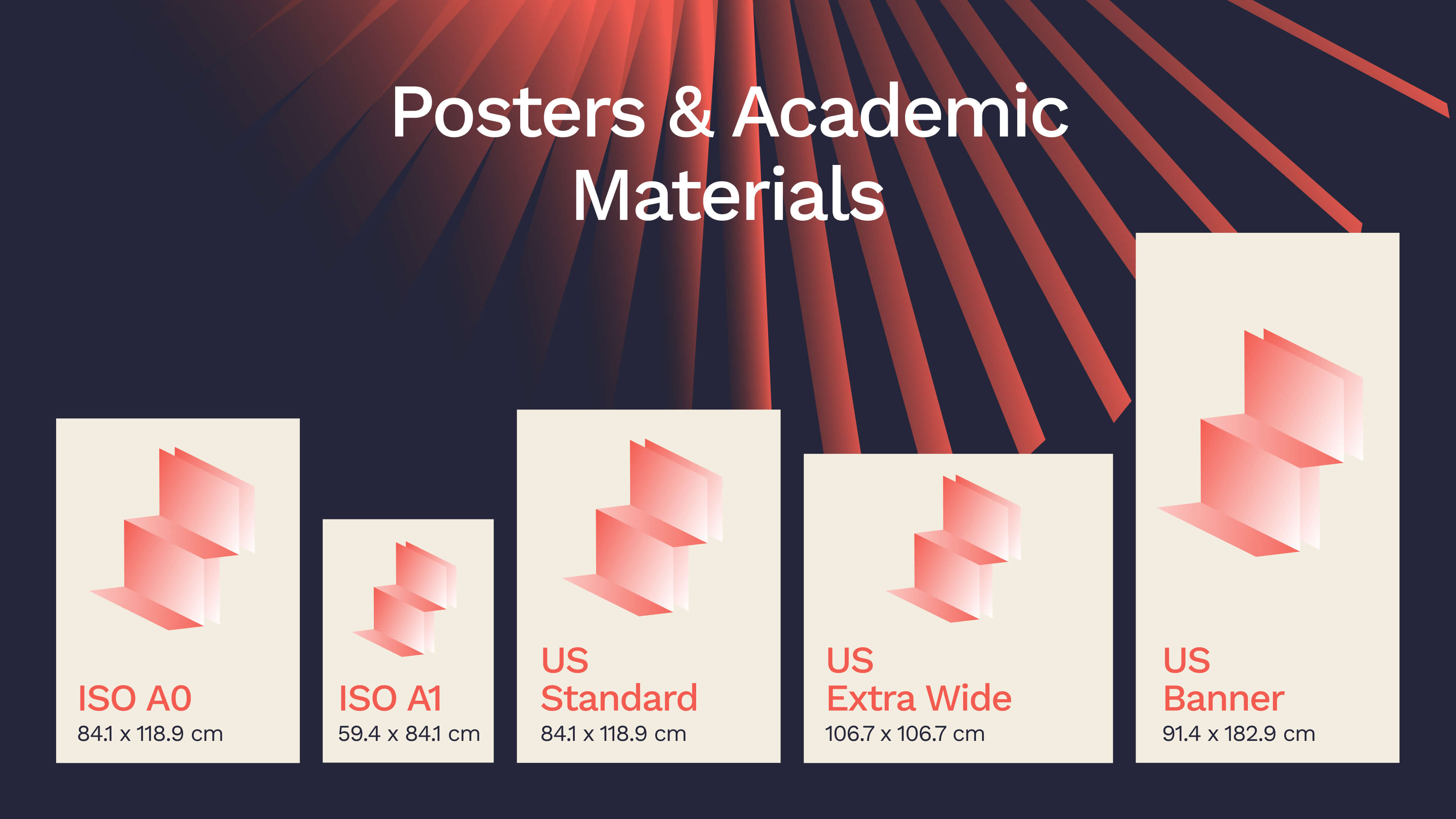
PowerPoint is the standard design tool for 85% of the scientific community. To design large-format print materials with it, first, check your requirements. A US conference often requires a 36" x 48" board, while European ones commonly use an A0 frame.
No need to convert units manually! PowerPoint automatically converts the value based on your system’s DPI (Dots per Inch). For example, to design for Instagram (1080px) in a centimeter-based PowerPoint, simply type "1080 px" into the width box and let the program do the math.
If you’re designing graphics to export, PowerPoint often compresses the output resolution.
To guarantee a crisp 1920 x 1080 (Full HD) export on a standard Windows machine (96 DPI), you must set your PowerPoint slide dimensions to these numbers:
Designing at this larger physical size forces PowerPoint to export a high-definition image without blurring the text.
Changing the PowerPoint slide size after you’ve designed the slides is destructive. It moves text and stretches images. Here’s how professionals fix the damage.
Resizing an existing presentation often results in scattered content.
Pro tip: Don’t resize the populated deck.
Users ask: "How do I make just one slide Portrait?" In reality, you can't. A PowerPoint file must be all Landscape or all Portrait.
Pro tip: Link two files.
If you accidentally clicked Maximize and now your team photos look squashed or stretched:
The "56-Inch Trap" (And How to Fix It)
Resizing a presentation often reveals the cracks in a company’s template. Logos distort, fonts revert to default, and branding breaks.
At Whitepage, we provide bulletproof presentation design services building decks that adapt to any format, be it a 16:9 pitch deck or a print-ready A4 report. If you need a presentation system that works as hard as you do, we can help.


This happens because you selected Maximize when PowerPoint asked you to scale. It forced your images to fill the new PowerPoint slide dimensions, destroying their aspect ratio. The Fix: Select the image, go to the Picture Format > Reset Picture > Reset Picture & Size
This is usually a printer hardware issue. Most office printers require a "gripper margin" of about 0.2 inches at the edge of the page. The Fix: In the File > Print menu, check the box for "Scale to Fit Paper."


867 BOYLSTON ST
BOSTON, MA 02116


