


























.avif)
.avif)
.avif)















Get a guide to creating pitch decks presentation



.png)

Public speaking is stressful. Between forgetting your lines, losing your place, and staying connected with the audience, it’s easy to feel overwhelmed. And reading off the slides is no solution – it kills engagement faster than anything else.
The professional solution is Presenter View PowerPoint.
Think of it as Mission Control. Your audience sees the spaceship (your slides), but you see the controls (notes, next slide, and timer). Split-screen setup allows you to present with confidence because you never have to memorize a script.
This guide is your fast-track to Presenter View. We’ll cover everything from the force-start shortcuts to handling the single-screen struggle of remote presenting.
It’s a dual-monitor tool that separates your computer into two views:
.jpg)
This PPT presentation mode is helpful, first and foremost, due to its psychological effect. It lets you:
It turns a high-stress endeavor into an expertly managed performance.
Before you start your presentation, go to the Slide Show tab. On the far right, ensure the checkbox labeled Use Presenter View is ticked.
⚠️ If this is unchecked, PowerPoint will default to mirroring your screen, exposing your notes to the room.
Once that’s set, you have two ways to launch PowerPoint presentation mode.
This is the standard method, best for verifying your settings before you go live.
Your screen should now shift to the dashboard, while the projector shows the slides.
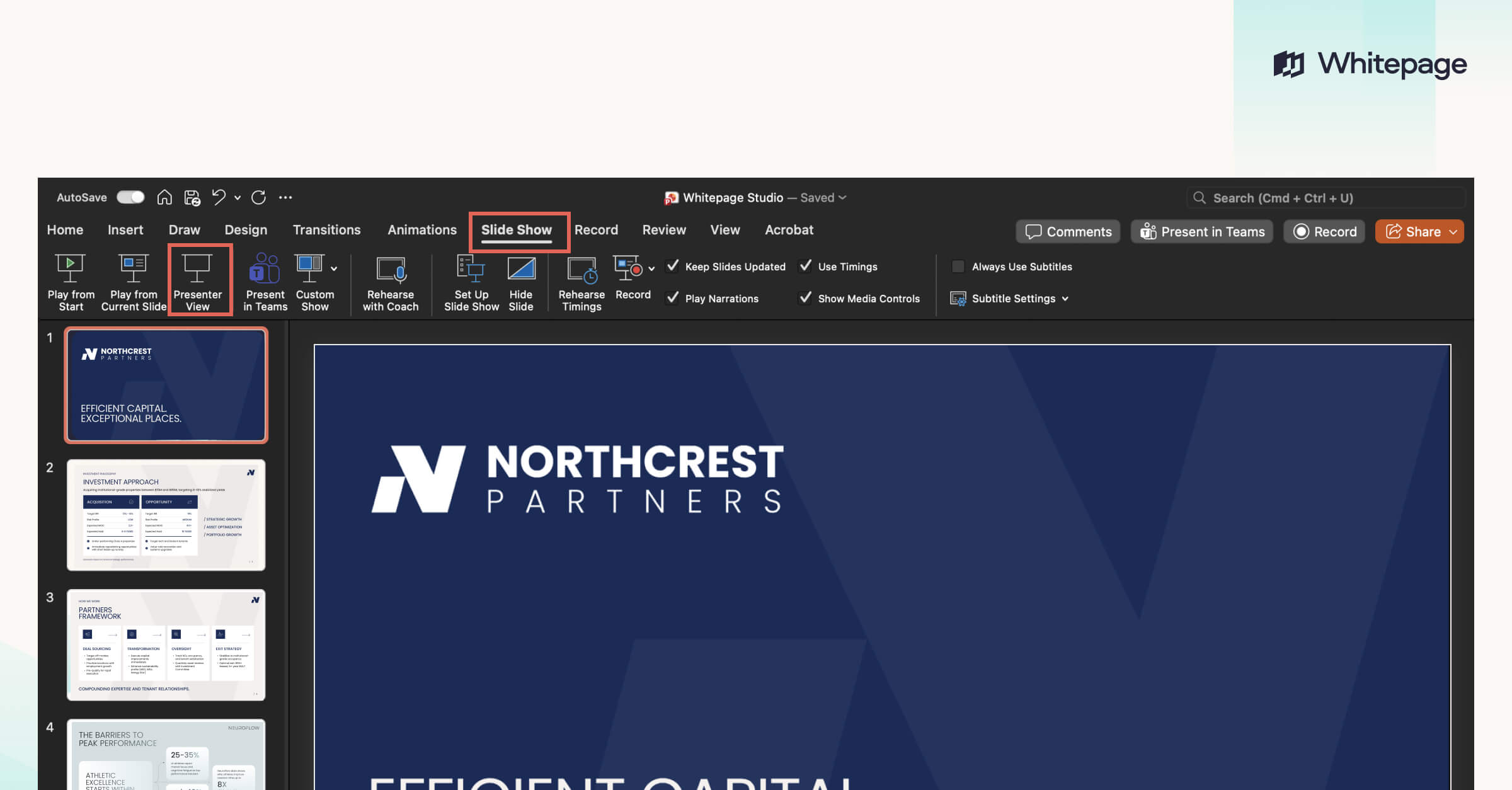
This is the expert force-start method. It’s faster and more reliable.
Using the standard F5 key initiates the show based on your current system settings. If Windows gets confused, it might put the slides on your laptop screen.
However, the Presenter View shortcut sends a specific command: "Start the show and force the dashboard to open." Use this command every time to bypass technical glitches.
This forces the PPT Presenter View to open immediately, even if you are only using one screen for practice.
Once inside the presenter mode PowerPoint dashboard, you have access to a suite of tools designed to keep you in control. Here are the ones that actually matter.
.jpg)
(Note: You can hover over the icons at the bottom of the current slide view to see tooltips for these features.)
☝️ Pro Tip: Don't force yourself to squint at tiny text. Use short bullet points to avoid reading verbatim and sound more conversational.
☝️ Pro Tip: This is a powerful "reset" button for regaining attention.
In a "classic" setup, where your laptop is connected to a meeting room projector or an external monitor, ideally, PowerPoint detects the big screen automatically. You press F5, your laptop shows the dashboard, and the projector shows the slides.
Sometimes, the signals get crossed. You look up and realize it's backwards – the audience sees your cheat sheet while you see the presentation slides.
Sometimes, both screens are showing the same thing (mirroring).
Don't panic. There’s a two-click fix.
PowerPoint will place the notes back on your laptop and the slides on the projector. You don’t need to restart the presentation or unplug cables.
If Presenter View refuses to launch at all, your computer might be trying to clone the screen rather than use two different ones. You need to "extend display" in system settings.
Presenting online introduces a new problem: the single monitor limitations. If you are working from home with just a laptop, launching Presenter View takes over your machine. You lose sight of the Zoom controls, the chat window, and the audience’s faces.
Here’s how to use Presenter View PowerPoint effectively, even with one screen.
Teams has a feature called PowerPoint Live that solves this instantly. It is superior to standard screen sharing.
Alternatively:
.jpg)
Why this wins: Teams runs the presentation from the cloud. The audience sees high-definition slides. You see a built-in Presenter View directly inside the Teams window, with your notes, the next slide preview, and the audience video feed, all arranged perfectly.
For these platforms, "Full Screen" mode is your enemy. It hides your meeting controls. You have two ways to fix this on a single monitor.
Option A: The "Windowed Mode" Trick (Desktop App)
If you must use the desktop app (e.g., for heavy animations), you need to stop PowerPoint from going full-screen.
Option B: The "Browser Tab" Trick (Easiest Method)
This is the cleanest solution.
.jpg)
Just knowing what PPT Presenter View buttons to push isn’t enough. True mastery comes from using the tool to create a connection with your audience.
Here are a few tips that can upgrade your performance.
The biggest trap of presenter mode PowerPoint delivery is treating notes like a teleprompter. If you write full sentences, you will read them. Your voice will become monotone, and you will lose eye contact.
☝️ Pro Tip: Write your notes as short, punchy bullet points.
This way, you look at the note, glance up, and speak naturally.
In a virtual meeting, your "eye contact" is the webcam. If your notes are at the bottom of your screen, you spend the meeting looking down.
☝️ Pro Tip: Using the "Windowed Mode" trick, drag the PowerPoint presentation mode window to the top-center of your screen, underneath the webcam. This keeps your gaze high and on the audience.
Sometimes, the slides are a distraction. If you’re telling a personal story or answering a tough question, you want the audience to look at you, not the screen.
☝️ Pro Tip: Press B on your keyboard. The audience's screen goes dark. Their eyes instantly shift to you. When you’re ready to move on, press any key to bring the slide back.
If you're presenting a complex chart or spreadsheet in PPT presentation mode, the audience might not see the details.
☝️ Pro Tip: Use the Magnifying Glass icon in the toolbar. Click on the data point you are discussing to zoom in. This guides the audience's focus to where you want it.
Mastering Presenter View gives you control over your delivery. But true confidence comes from knowing your slides convey the same professionalism you do.
A cluttered, amateur deck can undermine the best performance. If you’re worried that your visual impact doesn't match your speaking skills, we can bridge that gap.
At Whitepage.studio, we specialize in high-stakes presentation design services, turning complex ideas into business-first visual stories that help you win investors and close deals. Contact us, and we’ll make your slides command attention.


Do not unplug your computer. Look at the Presenter View dashboard. Click Display Settings at the top of the screen. Select Swap Presenter View and Slide Show. PowerPoint will instantly flip the views.
There are two possible fixes. Go to the Slide Show tab and ensure Use Presenter View is ticked. Or, if Windows does not detect the second screen, use the shortcut Alt + F5 (Windows) or Option + Return (Mac).
Yes, but you must be careful not to share your whole screen. For Teams, use the PowerPoint Live feature. For Zoom, set your slideshow to "Browsed by an individual (window)" mode (Slide Show > Set Up Slide Show). Share just the slide window while keeping your notes visible on the same screen.
If your notes are too small to read comfortably, you don't need to edit the slide font. In the Speaker Notes pane (bottom right of the dashboard), click the "A+" icon.


867 BOYLSTON ST
BOSTON, MA 02116


