






























.avif)

.avif)
.avif)



























Get a guide to creating pitch decks presentation



.png)

Recurring presentations rarely start from a blank slide. Finance teams update the same board deck every month, sales teams produce account-specific decks from CRM data, and researchers rebuild charts for every market or reporting wave.
PowerPoint automation moves approved data into a branded template, refreshes charts, creates variants, checks predictable errors, and routes files for review. It is broader than asking AI to generate a deck from a prompt.
Across 12 years and more than 4,000 presentation projects, we have seen one pattern repeatedly: speed matters only when the deck remains accurate, clear, on-brand, and editable. Otherwise, automation merely moves the work from production to cleanup. Our working rule is simple: automate repeatable production, but keep data interpretation, narrative judgment, and final design approval with people.
Choose the method based on the workflow, not the best demo. A quarterly deck owned by one analyst may need only a strong template and linked Excel charts. Fifty customer decks generated from CRM records usually require conditional rules and a dedicated platform or API. A custom internal reporting system may justify code.
Every reliable setup has six parts: a trusted data source, an automation-ready template, mapping rules, a trigger, validation, and an editable output. If one part is missing, the workflow will remain partly manual or become difficult to trust.
PowerPoint automation uses templates, links, rules, software, or code to create, update, validate, or distribute decks with less repetitive work. It automates predictable production while keeping human judgment where context matters.
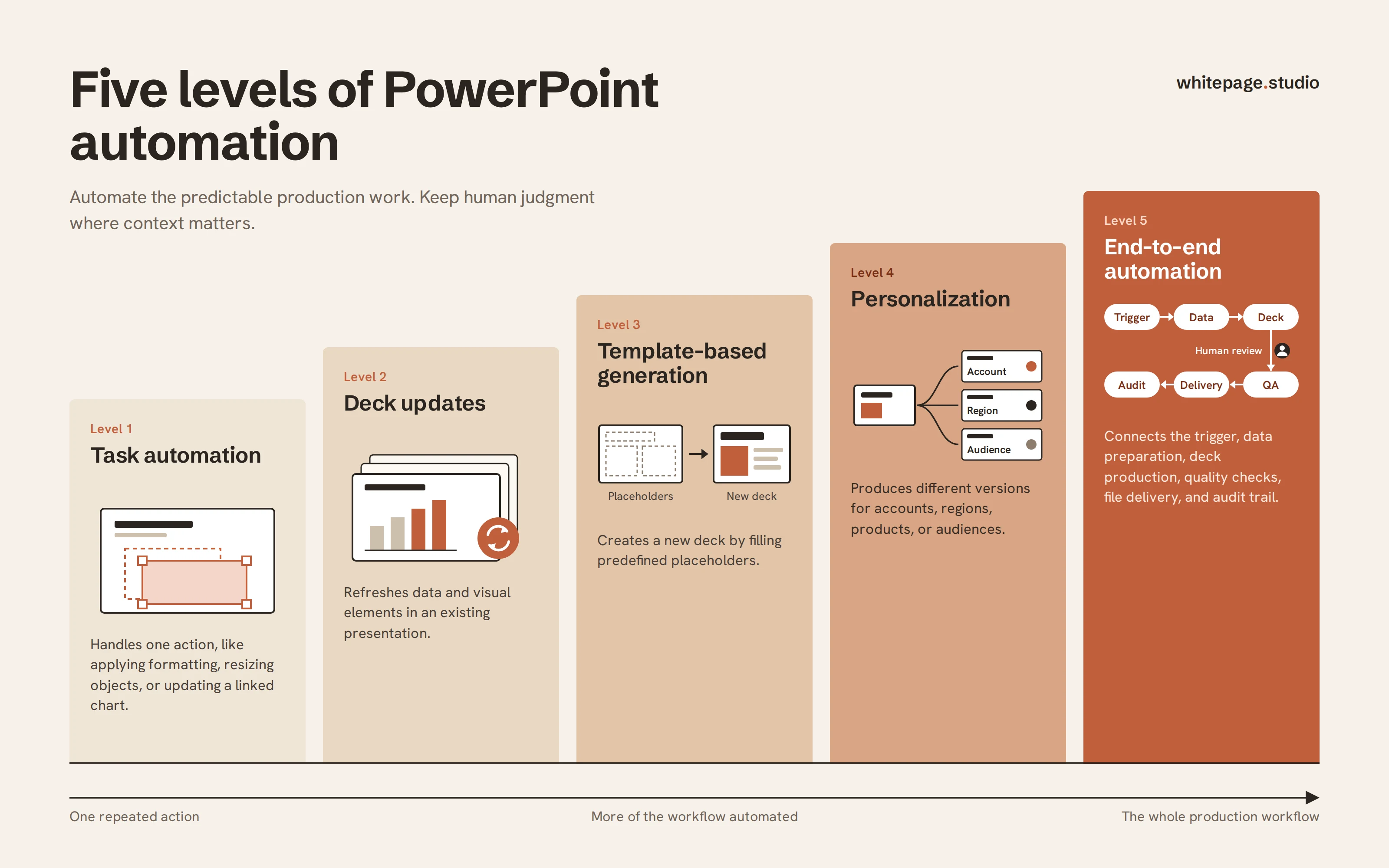
There are several levels of automation:
An automated PowerPoint presentation built from a controlled template differs from an AI-generated presentation. The first follows rules and should repeat the same result from the same input. The second predicts an output, so its wording, facts, and layout require review.
Most workflows combine approaches. A team might clean data in Excel, populate a template through an add-in, use AI for the executive-summary draft, and ask an analyst to approve the file. Each layer needs a defined job.
For contained tasks, start in PowerPoint. Slide Master and custom layouts control recurring positions, fonts, colors, and placeholders. Reusable slides prevent rebuilding standard sections. Linked Excel charts and ranges can be refreshed instead of pasted again.
VBA macros can duplicate slides, change text, refresh links, or export files. They offer substantial desktop control, but introduce security, device, and maintenance concerns. A macro owned by one employee is not an organizational workflow.
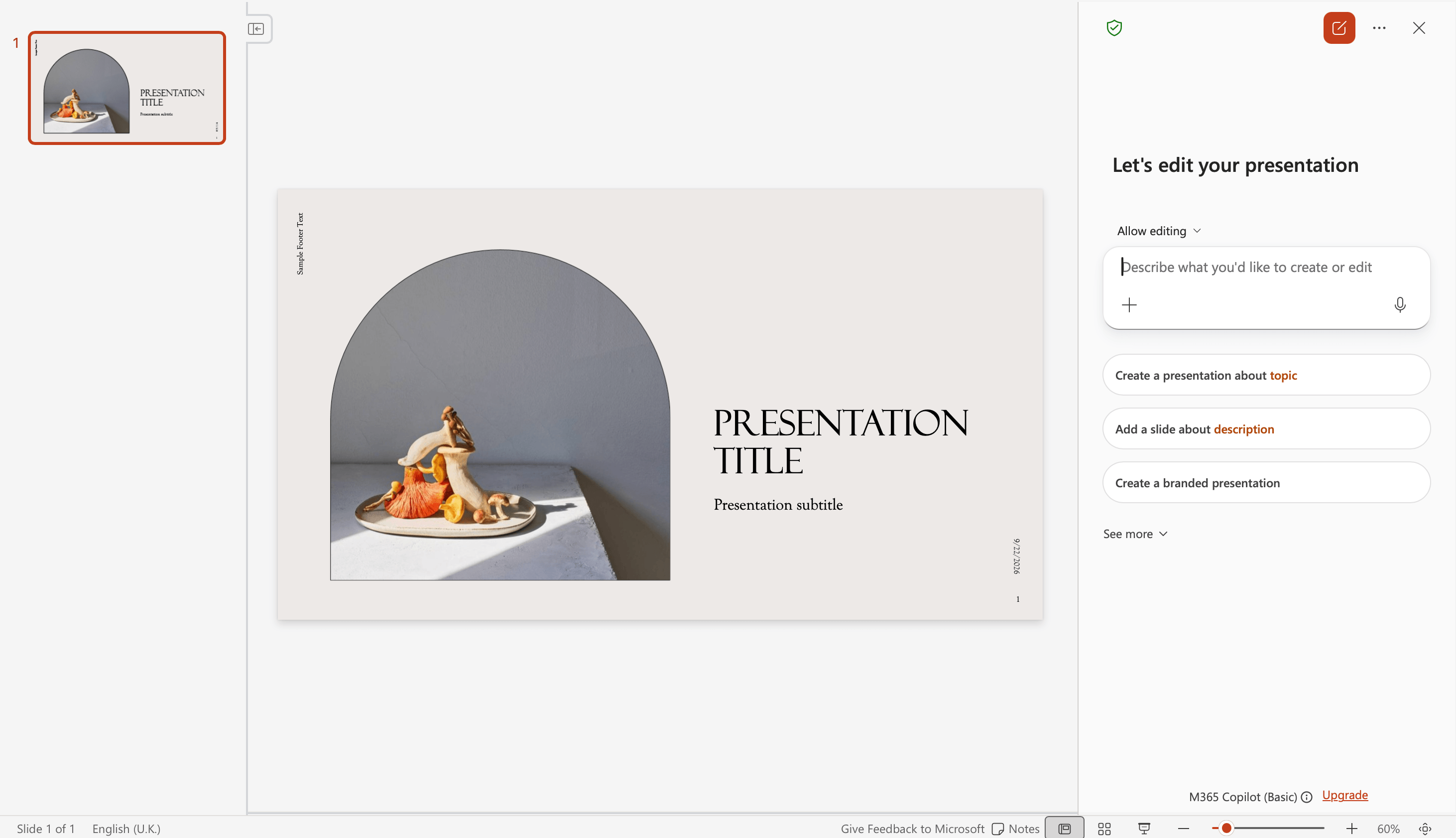
Microsoft Copilot can create or edit slides, rewrite text, summarize a deck, and draft from source material. It is an AI assistant, not a deterministic reporting engine. Power Automate Desktop can coordinate files, scripts, and interface actions, but UI-driven flows are more fragile than direct connections.
Native features suit modest volume and stable desktop-based workflows. They become limiting with hundreds of variants, complex rules, unattended cloud execution, or centralized monitoring.
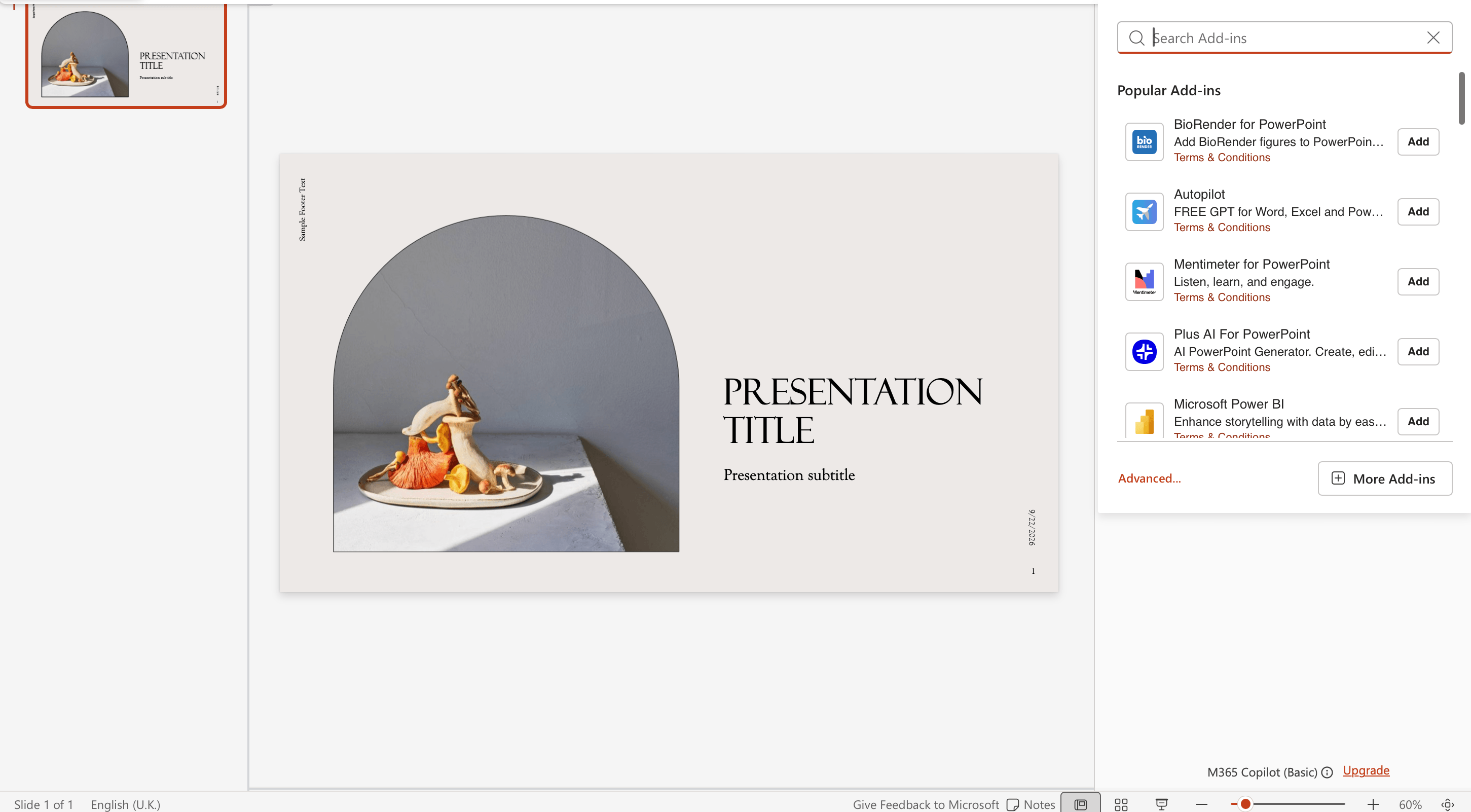
Dedicated tools connect data to templates without requiring users to maintain a software project. think-cell focuses on charts and Excel-driven reporting; SlideFab populates and repeats slides from an Excel model; Rollstack connects BI sources; and Matik supports personalized CRM- and data-driven content.
Ask what objects a platform can populate, whether charts remain editable, how it handles missing data, which triggers it supports, and how closely the output follows the template. Refreshing existing content, generating a PPTX, preserving a native chart, and inserting an image are different capabilities with different review costs.
This approach often fits monthly reports, customer reviews, portfolio updates, and research outputs. The tradeoff is licensing, platform-specific setup, and dependence on supported connectors.
Code suits workflows that are too specific for standard tools or must operate inside larger systems. VBA works in the desktop app. Python libraries such as python-pptx can generate and update PPTX files without PowerPoint installed. PptxGenJS supports JavaScript workflows, while .NET teams can use Open XML or commercial APIs.
A compact flow might receive a customer ID, retrieve approved CRM fields, choose layouts, populate named placeholders, apply rules, export a PPTX, and run checks. The hard part is handling template changes, unusual data, chart behavior, fonts, and long-term ownership.
Code provides maximum flexibility, but it creates a software product that needs tests, documentation, security review, and maintenance. Use it when the value and volume justify that responsibility.
Generative AI creates or substantially rewrites presentation content and layouts from a natural-language prompt or source file. Unlike deterministic automation, it does not simply place approved values into predefined placeholders – it interprets the input and produces a new draft.
Current solutions support different presentation workflows. Microsoft Copilot can generate and edit content directly in PowerPoint; Plus AI works inside PowerPoint and Google Slides; Gamma creates web-first presentations that can be exported to PPTX; and Canva’s Magic Design for Presentations generates presentation drafts within Canva. These tools are not interchangeable automation engines: some prioritize native editing, while others prioritize rapid visual generation.
AI is useful for language transformation rather than exact repetition. It can turn notes into an outline, shorten copy, draft speaker notes, summarize research, adapt content, and propose slide titles.
AI does not guarantee factual accuracy, repeatability, or exact template fidelity. It may change a number, introduce an unsupported claim, or drift from the design system. In recurring reporting, AI should sit inside a controlled workflow rather than replace it.
Whitepage’s AI presentation design system and AI presentation design templates are built around that same principle: AI can accelerate production, but the process still needs clear inputs, design rules, and review.
The practical dividing line is repeatability. Deterministic automation is better for exact data, recurring structures, and auditable output. Generative AI is better for language, synthesis, and exploration. Many strong workflows use both, but they do not ask both systems to perform the same job.
Begin with one repeatable deliverable, not a company-wide promise to automate every deck.
Pilot a real deck and measure time after review and cleanup, not only generation.
Each workflow below identifies what the system produces and what a person still approves. That boundary is part of the design.
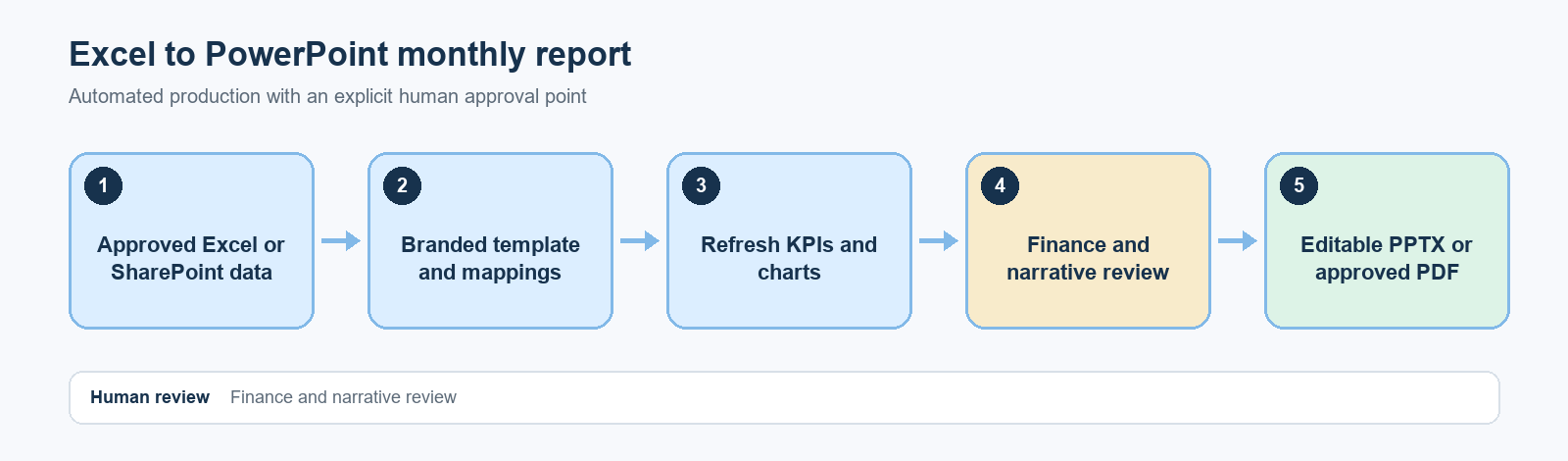
A finance or operations team closes the period in Excel or SharePoint. Automation updates KPIs and charts in a branded template, checks the period, and creates an editable PPTX or approved PDF. A finance owner verifies filters, totals, chart scales, and material variances; an analyst writes the commentary.
Figure 1. Excel-to-PowerPoint monthly reporting workflow
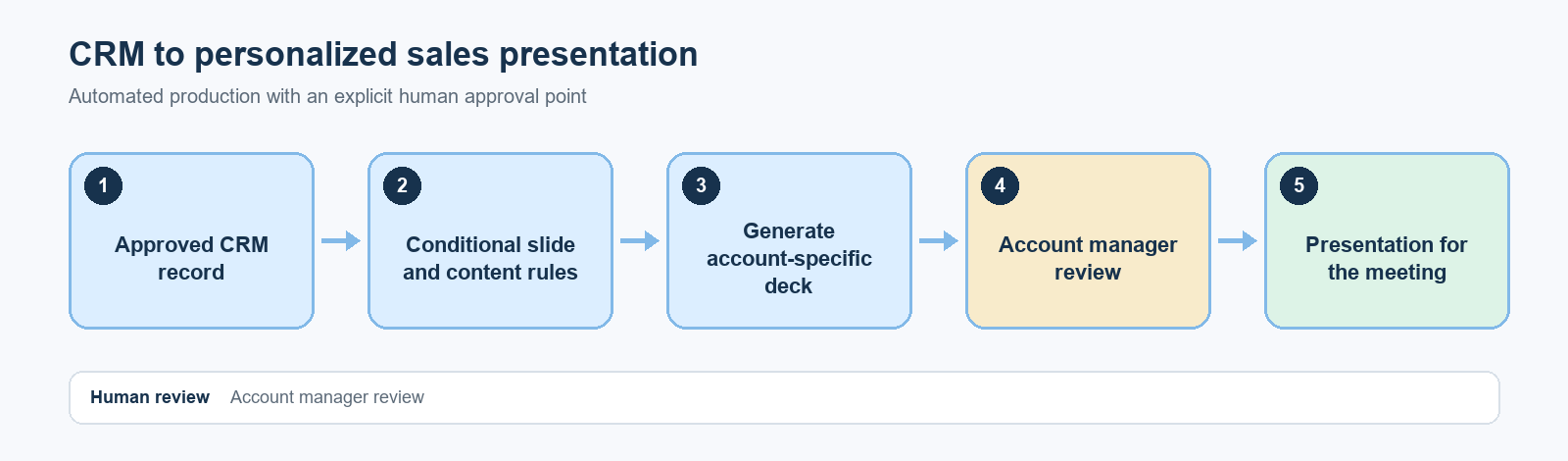
A CRM record supplies approved account fields. Rules select slides, populate messages and metrics, and generate a customer-specific deck – a practical way to automate PowerPoint slides when the structure is stable but details vary. The account manager confirms the evidence, removes irrelevant slides, and adjusts the emphasis for the meeting.
Figure 2. CRM-to-personalized-sales-deck workflow
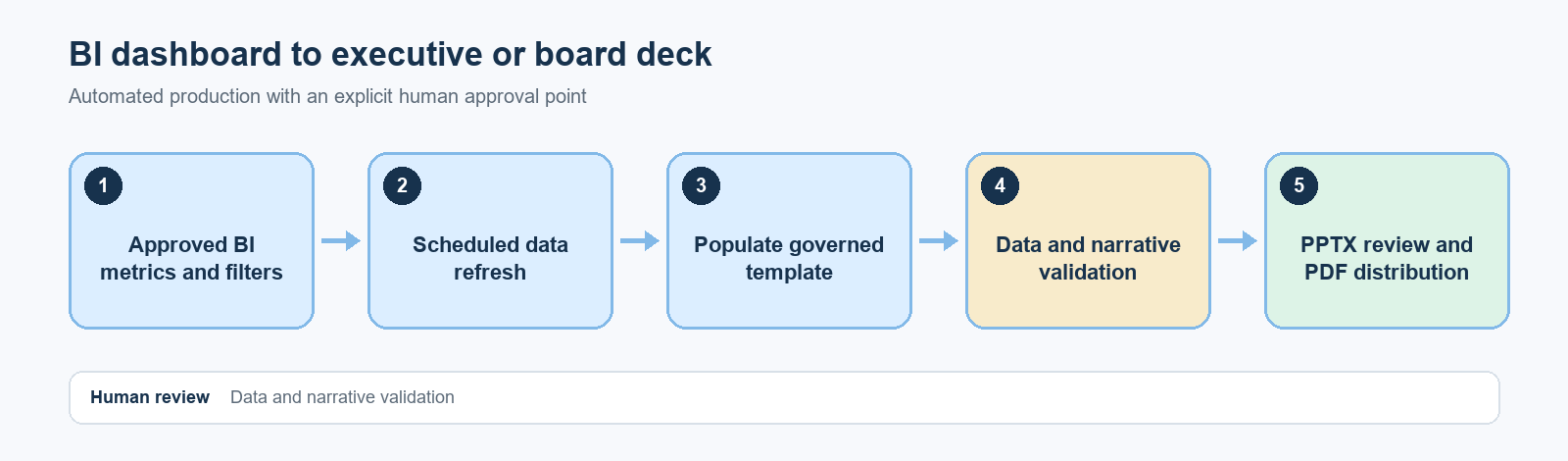
A BI platform remains the source of approved metrics. An integration places selected visuals or data in a governed template, refreshes the deck, and routes it for approval. An analyst validates data and filters; an executive owner decides which changes matter and approves the narrative.
Figure 3. BI-to-board-deck workflow
Research teams may need one deck per market, segment, brand, or survey wave. Automation maps crosstabs to charts and tables, applies rules, repeats layouts, and exports each version. Analysts still check sample sizes, interpret findings, and decide what deserves emphasis.
An ordinary branded deck is not automatically automation-ready. It must handle short, long, missing, and repeated content.
Use Slide Master layouts for recurring structure, placeholders for variable content, and stable shape names when the tool uses object mapping. Prefer defined layouts for recurring content types over one flexible blank slide.
Separate fixed brand elements from dynamic titles, metrics, charts, account names, and commentary fields.
Define limits for text length, table growth, missing images, and empty sections. Decide whether missing content disappears, displays “Not available,” or stops the run.
Professional presentation design matters here. Automation can preserve a strong system, but it cannot fix unclear hierarchy or overcrowded layouts. A presentation design retainer can support template governance as the workflow evolves.
The same principle applies to corporate presentation design: consist
Validation should cover the content, the file, and the operating process. A deck is not ready because the automation completed without an error message.
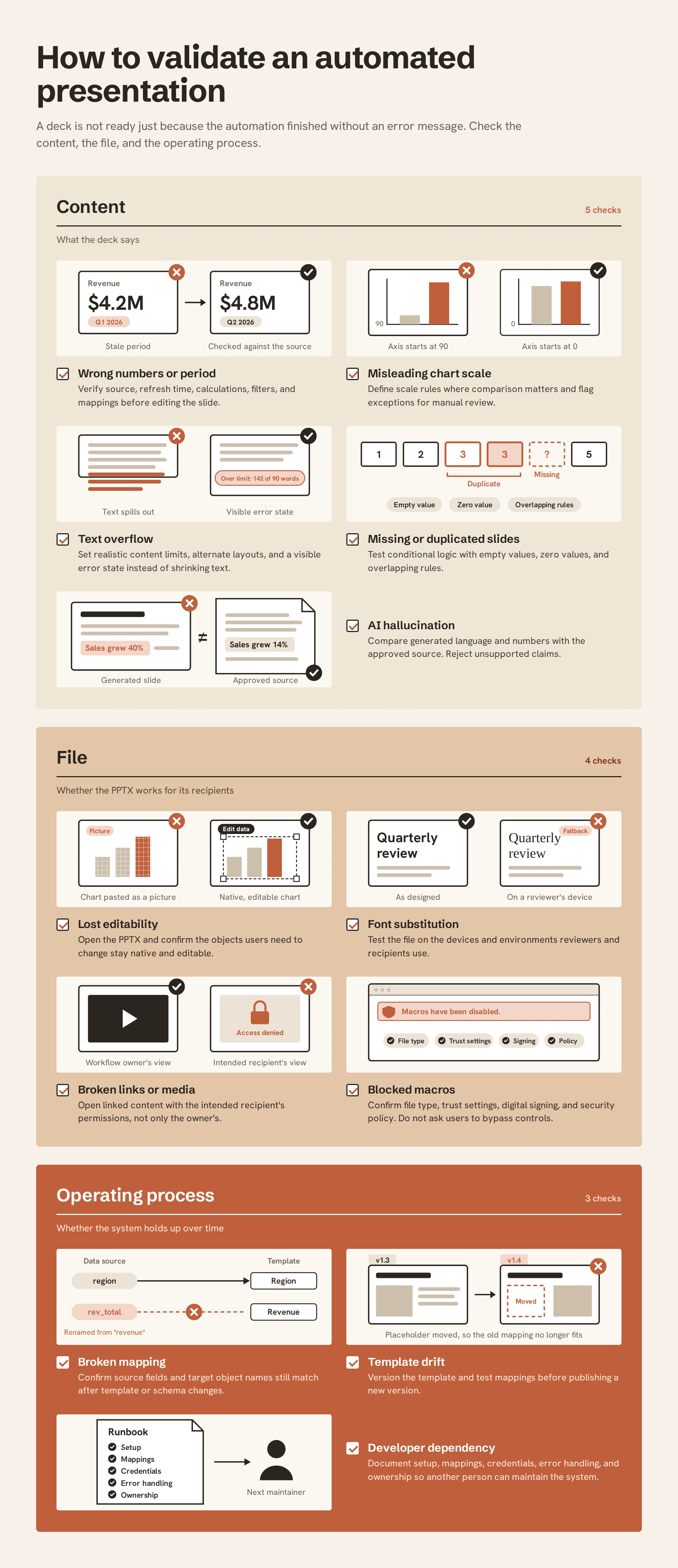
Finish with a cross-device opening test and a visual review. Small layout changes can alter line breaks, table height, or chart labels even when the underlying data is correct.
The right solution balances production volume with the cost of setup and maintenance. Review these factors before evaluating vendors or libraries:
Do not judge a solution from its best demo. Test it with your real template, your least convenient data, and the people who will operate it after launch.
Automation does not pay off when the deck is truly one-off, the structure changes every cycle, the data is not standardized, or the output depends on original creative direction. It may also be a poor investment when the volume is low or no one owns the workflow after implementation.
Keep predictable production tasks in the automation layer: retrieving approved data, populating placeholders, applying rules, repeating layouts, naming files, and routing outputs. Keep audience understanding, narrative, interpretation, prioritization, sensitive claims, final design decisions, and approval with people.
This boundary is especially important for executive, investor, and sales presentations. The audience does not need every available number. It needs the right message, supported by the right evidence, in the right order. That is a communication decision rather than a data-mapping task.
Start with one workflow that repeats, has measurable production time, and uses reasonably stable data. Prove that it works, document it, and only then extend the approach to additional presentations.


Yes. You can automate individual tasks, update an existing deck, generate presentations from a template, create personalized versions, or connect the entire workflow from data preparation to distribution. The right level depends on repetition, accuracy, volume, and available technical ownership.
PowerPoint can link to saved Excel data and charts, which users can refresh when the source changes. This is useful for recurring reports, but links can fail when files move, access changes, or recipients cannot reach the source. Test the workflow in the actual storage environment before relying on it.
Power Automate can coordinate triggers, files, approvals, scripts, and distribution around a presentation workflow. It does not provide the same direct PowerPoint object automation that it provides for some other Microsoft applications. Creating or updating slide content usually requires a desktop flow, a script, an API, or a third-party connector, and the limitations of that component still apply.
AI can generate a strong first draft and support rewriting, summaries, speaker notes, and content adaptation. It should not be trusted to publish an investor, board, financial, or client presentation without checking facts, narrative, template fidelity, and visual output.
There is no universal best tool. Native features suit individual tasks; add-ins and data-to-template platforms suit recurring business reports; APIs and code suit custom high-volume systems; AI suits drafting and transformation. Compare tools using your actual source data, template, output requirements, and maintenance capacity.


867 BOYLSTON ST
BOSTON, MA 02116


